
Organize Your Datasets with Custom Labels
Effortlessly organize, categorize, and find your datasets with customizable, color-coded labels shared across your workspace.
Dataset Labels help you organize and find datasets quickly by assigning customizable, color-coded labels. Labels are shared across your workspace, making it easy for everyone to stay organized. You can assign multiple labels to any dataset, and update label names or colors at any time—changes are instantly reflected everywhere.
You can filter or group datasets by label on the management page, and your preferences will stay active for your session. Labels can be any color you choose, including custom HEX codes, so you can visually distinguish categories at a glance.
Why use labels?
- Categorize datasets by project, status, owner, or any custom criteria.
- Quickly filter or group datasets to find what you need.
- Visually distinguish datasets using color-coded labels.
How to create and use labels
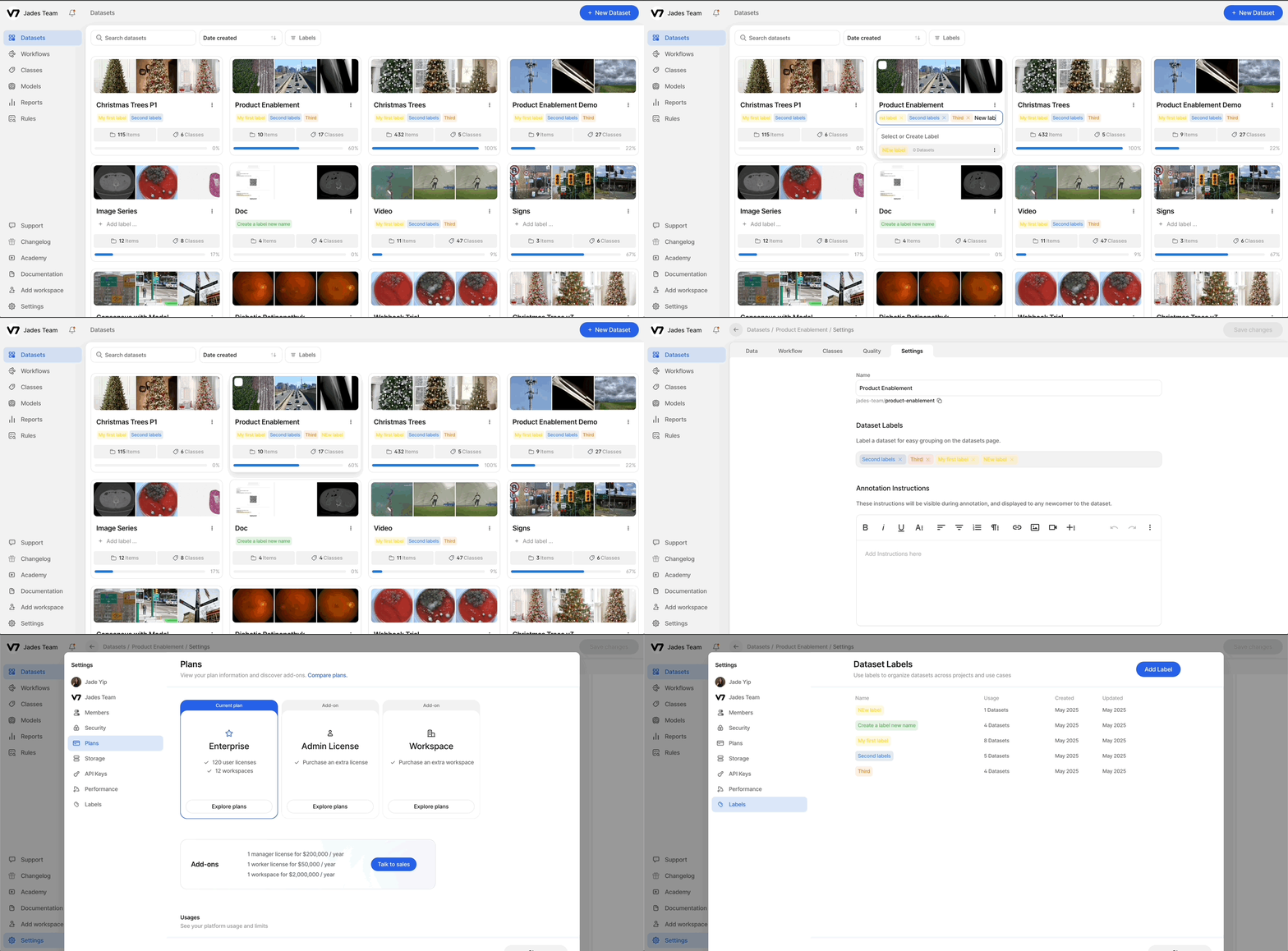
- Go to the Datasets menu, Dataset Settings tab, or Settings → Labels.
- Create a new label (choose a name and color) or select from existing labels.
- Assign one or more labels to your dataset.
- To edit a label's name or color, use the label management interface (WFM permissions or higher required). Changes update everywhere instantly.
- Use the filter and group options on the dataset management page to organize datasets by label. Your settings persist for your session.
- Bulk label datasets: Select multiple datasets on the management page, then choose which labels to apply or remove. This makes it easy to organize large numbers of datasets at once.
Permissions
- Create, edit, or delete labels: Only users with WFM (Workforce Manager) permissions or higher can do this.
- View and filter by labels: All users can see labels and use them to filter or group datasets.
Updated 8 months ago
Did this page help you?