---
updatedAt: 2026-09-02T08:06:54.000Z
agentTools:
projectIndex: https://docs.v7labs.com/llms.txt
---
# Segment Anything Model (SAM)
V7's SAM integration allows you to label quicker than ever before
{`
`}
**Segment Anything Model (SAM)** is a generalized instance segmentation model developed by Meta that can assist you in labeling your data more efficiently than ever before.
In combination with V7's Workflows, you can effectively make use of **SAM** to greatly increase the speed of segmentation tasks whilst still maintaining quality as your top priority.
## The Basics
V7 allows you to use SAM on **images** and **videos** to create **Polygon** or **Mask** type annotations.
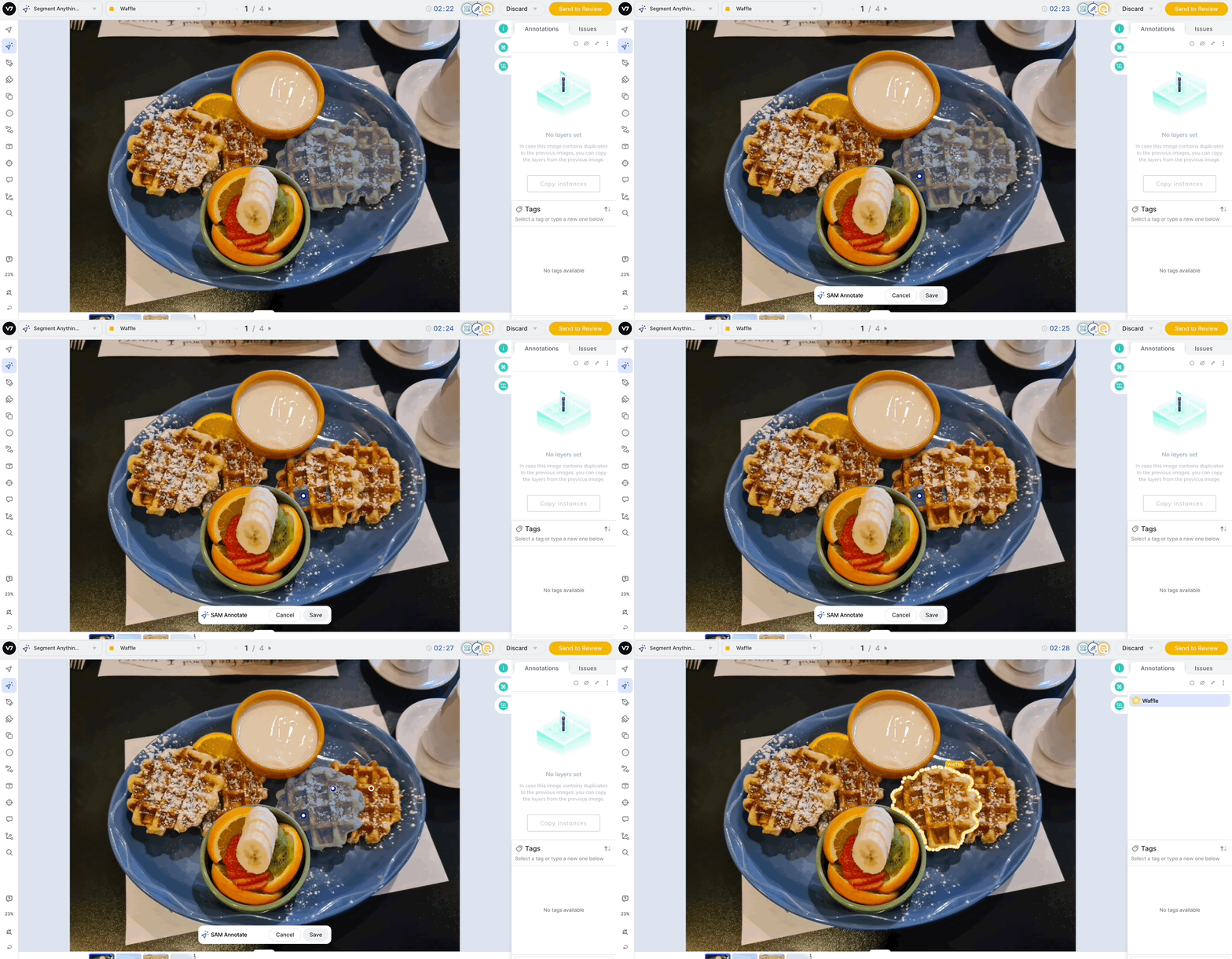
1. Click the **Models** button in the annotation toolbar, or the keyboard shortcut **N**
2. You will now see dots moving across the image as the SAM runs inference on your file
3. Hover your mouse over areas of interest in the file
4. Click to select when the correct annotation is highlighted
5. Correct the annotation by clicking within the border to delete, or outside the border to include
6. Click **Save** or hit **Enter** to save your annotation
### SAM for Masks
If you are adding multiple sections to a raster mask using SAM, then save each section individually by editing and saving with **Enter**. Subsequent masks will then be added to the same layer!
**NOTE:** Please make sure you have at least one polygon in your local dataset classes to initialize SAM for masks.
### Add and remove sections
The quickest way to add to or remove sections of polygons created with SAM is to use the built-in click-to-correct feature.
### Editing Annotations Created by SAM
You may need to make adjustments to your SAM generated labels. You can do this using the standard V7 labeling tools such as the **[Brush Tool](https://docs.v7labs.com/docs/the-brush-tool)**, or the **Polygon Tool**.

### Switch to Auto-Annotate
In some cases, it will be faster to regenerate the annotation using V7 **[Auto-Annotate](https://docs.v7labs.com/docs/auto-annotate)** rather than making corrections. To switch to Auto-Annotate check out our guide below!
## Switching to Other Models
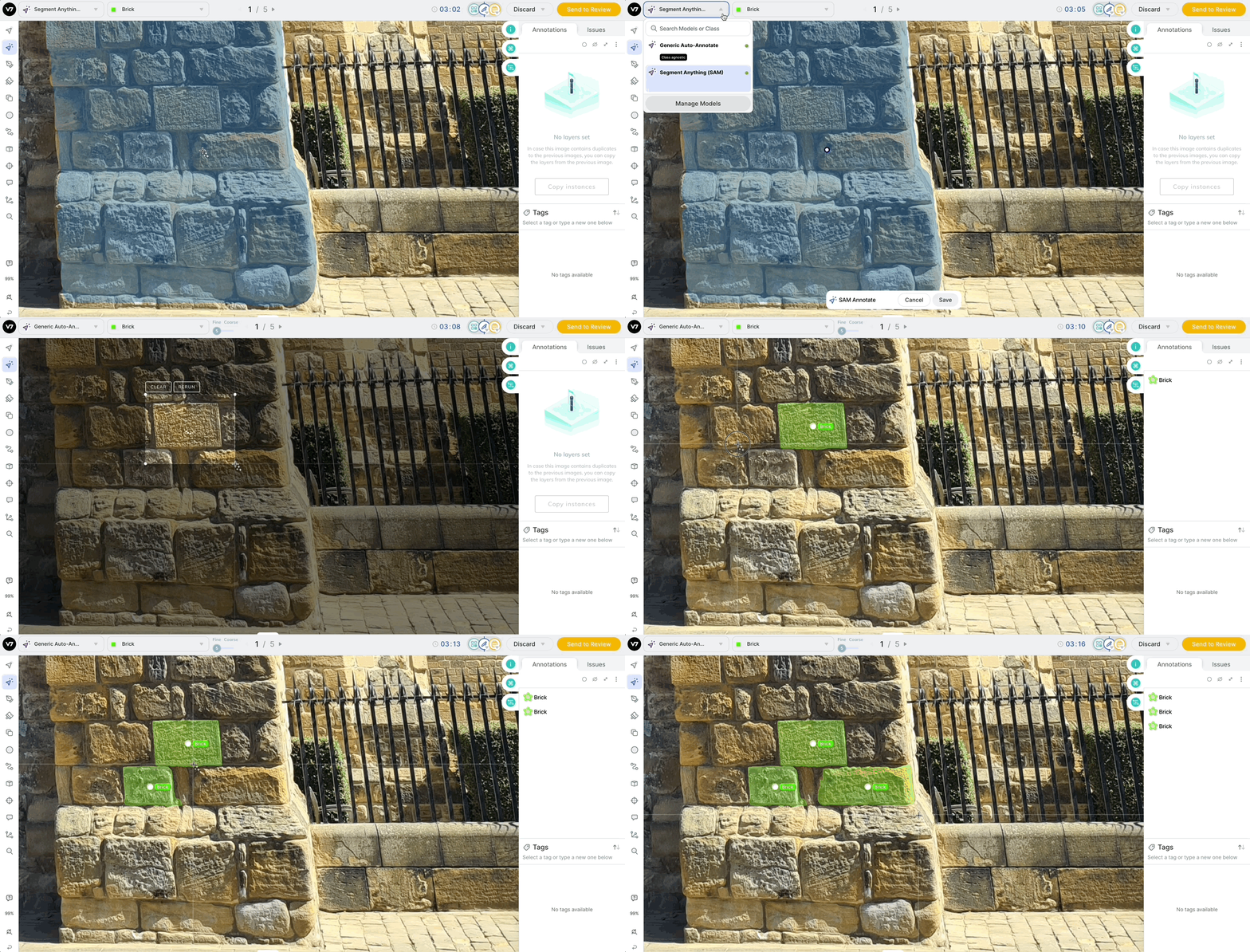
Other segmentation tools such as **[Auto-Annotate](https://docs.v7labs.com/docs/auto-annotate)** & other **[Models](https://docs.v7labs.com/docs/use-trained-neural-networks-and-confidence-scores-with-auto-annotate)** are still available, and can be switched to in the top panel using the model drop down menu.
### Creating Keyframes with SAM
### SAM for Videos & Loading Time
V7 has optimized our SAM video experience and will pre-load frames for high efficiency while annotation - this means if you move sequentially through the frames you will have a very fast loading time! However, if you jump to a frame further through the video, you will experience standard loading time.
Our [Guide on Interpolation](https://docs.v7labs.com/docs/use-interpolation-in-video-and-dicom) shares methods to create keyframes on videos. However now there is a faster method available for annotations created with SAM.
1. Create a video annotation with SAM & hit enter to save the annotation
2. Click the white circle on the annotation and then click the middle icon to enter **Edit Mode**
3. If the **blue & white circle** is still on your object of interest, V7 will automatically recompute the appropriate annotation. If you are happy with the annotation, use the **Enter** shortcut to save the annotation.
4. If the **blue & white circle** is not on your object of interest, then delete and recreate the point. V7 will then recompute the appropriate annotation. Once you are happy with the annotation, use the **Enter** shortcut to save the annotation.
### Save & Move to Next Frame
When you are editing the last item on your keyframe, you can use **Option + Enter** shortcut to save your last annotation and move to the next frame for added efficiency